
This guide explains how to access, review, and certify to Time and Effort in ServiceNow.
Quick Start
- Access certification through email notification or ServiceNow.
- Select the fiscal year.
- Review the projects and percentages displayed.
- Verify the information is reasonable.
- Select Yes or No.
- Add comments if corrections are needed.
- Save and submit.
1. Before You Begin
Why Am I Completing This Certification?
Time and Effort certifications are part of USU's annual reporting process for employees paid from sponsored projects. The certification helps confirm that salary charges reasonably reflect the work performed.
Important
Federal regulations require the university to verify that salary charges reasonably align with the work performed on sponsored projects. Your review helps ensure the certification is accurate and complete.
What Am I Verifying?
- The projects and activities listed are ones you worked on.
- The percentages reasonably reflect how work was distributed.
- The information appears accurate.
- Corrections are requested when needed.
Need Help?
Tip
Do not be concerned if you do not recognize every project title, grant number, or index listed on the certification. Project names used in accounting systems do not always match the terminology used in daily operations.
Important
If you have questions about a project or funding source, first contact your supervisor, department administrator, or business services team. They are often the best resource for explaining how work activities were funded.
Need Assistance?
If additional assistance is needed, contact the Sponsored Programs Accountant assigned to your department or college.
2. Accessing Certifications
Step 1: Open the Certification Page
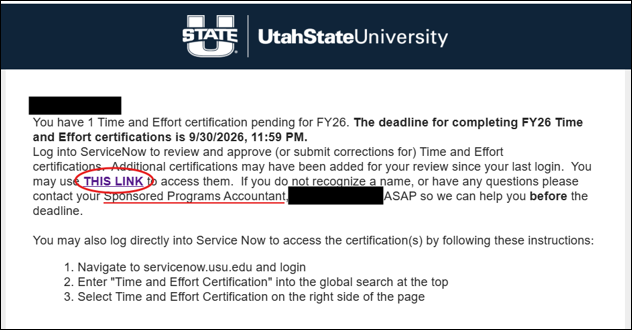
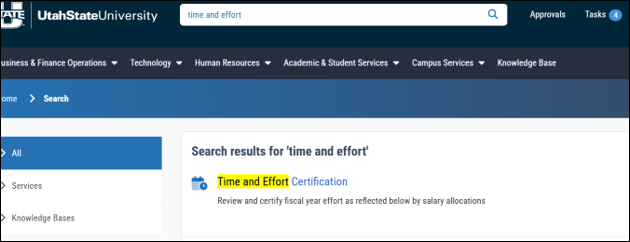
You may access Time and Effort Certifications requiring your review and signoff by:
- The link contained in the email notification (Figure 1), or
- In ServiceNow, search for “Time and Effort” (Figure 2).
Step 2: Select Fiscal Year
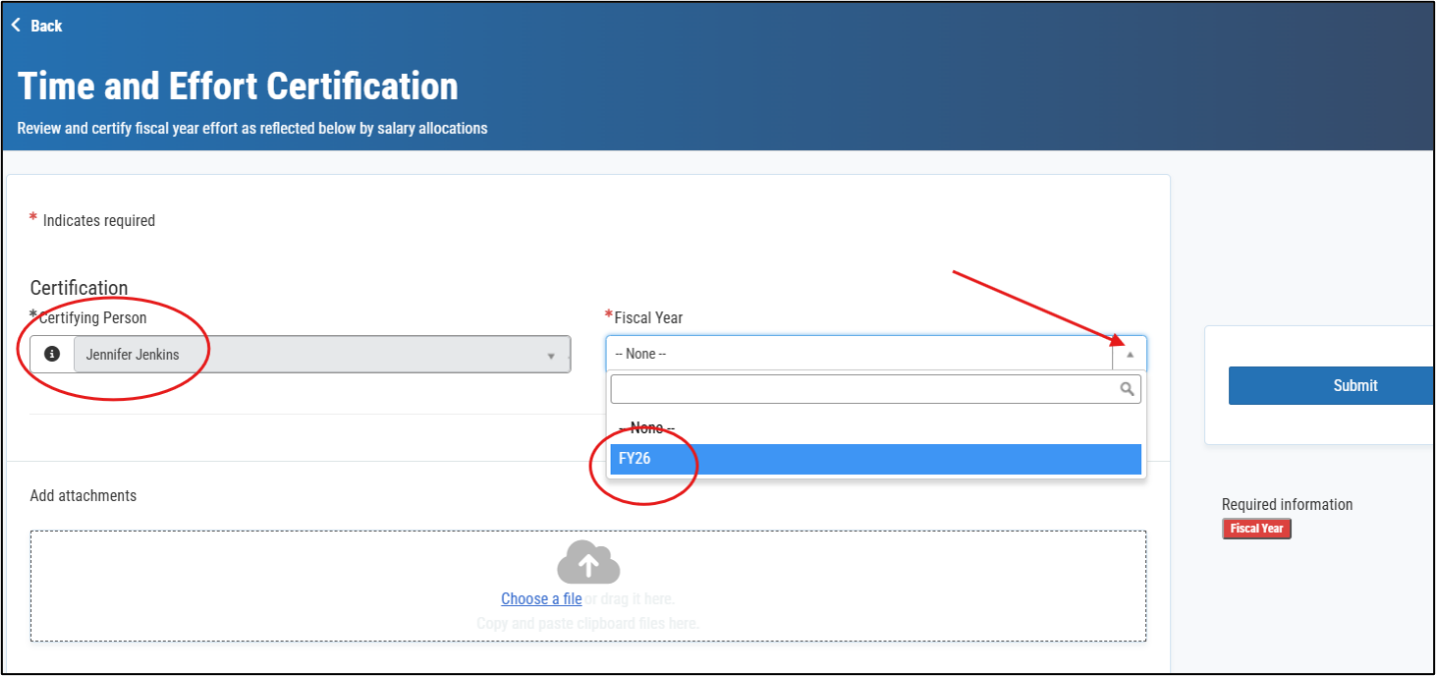
- Verify that your name appears as the Certifying Person.
- Click on dropdown menu for Fiscal Year.
- Select a fiscal year.
Step 3: Select a Time and Effort Certification
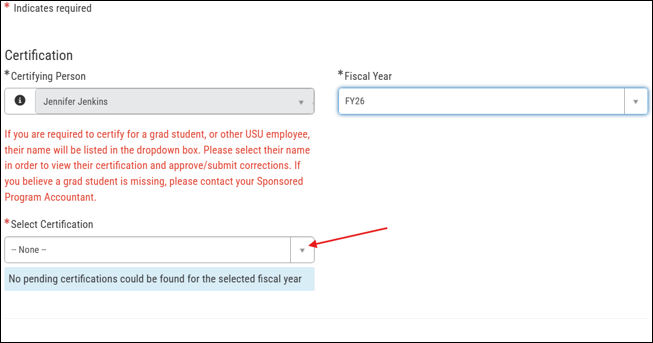
Choose the Time and Effort certification you will review.
You may see:
- Your own certification.
- Certifications for employees you supervised.
- Graduate students paid from sponsored awards or cost share indexes under your responsibility.
Tip
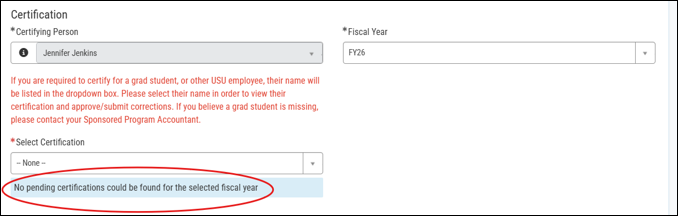
In the example above, there were no certifications available. Once all certifications in the selected fiscal year have been certified to or submitted for correction, you will receive the notification, “No pending certifications could be found for the selected fiscal year.”
Important
Remember, if more than one fiscal year is available in the Fiscal Year dropdown list, check each fiscal year for open certifications.
3. Review and Certify
Step 4: Review Time and Effort Certification
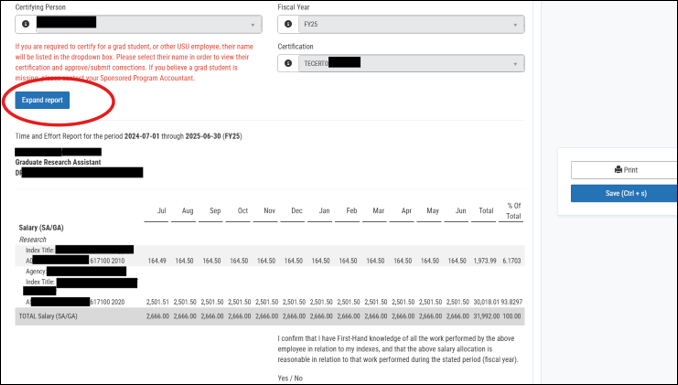
The certification will display projects, activities, and effort distributions for the selected reporting period.
Tip
Use the Expand Report button if additional viewing space is needed.
Verify the Following
Before certifying, confirm:
- The listed projects are correct.
- The activities appear accurate.
- The effort percentages reasonably reflect the work performed.
- The overall distribution appears reasonable.
Step 5: Complete the Certification
If the information appears reasonable:
- Select Yes from the certification dropdown.
- Save and submit.
Step 6: Request a Correction
If the information appears incorrect:
- Select No from the certification dropdown.
- Enter comments describing the issue.
- Save and submit.
Warning
Do not approve a certification that you believe is inaccurate. Select No and provide comments explaining the correction that is needed.
4. Complete Remaining Certifications
If additional certifications are available:
- Return to the dropdown list.
- Select the next person or certification.
- Repeat the review process.
Important
Remember to review certifications in each available fiscal year if multiple years appear in the dropdown menu.
5. How Do I Know I'm Finished?
Once all certifications have been completed, the system displays:
“No pending certifications could be found for the selected fiscal year.”
Best Practice
Before exiting the system, verify that each fiscal year has been reviewed and no pending certifications remain.